BT Digital Voice (DV) | |||||||||||||||||||||||||||||||||||||||||||||||||||||||||||||||||||||||||||||||||||||||||||||||||||||||||||
|
The impartial information on this page is given free of charge and without
prejudice
This page only deals with BT Digital Voice but some of the information is applicable to other line providers. Overview
In all the scenarios above a Smart Hub 2 is fitted and the telephone line is presented on the rear of hub on a green socket. The hub is also a DECT device so can support wireless telephones. Fault finding is much reduced because BT or your supplier own most of the equipment. Fault Finding Smart Hub 2 Telephone and/or internet do not work If the power is good then check the colour of the light on front of the Smart Hub. The table below is supplied by BT and explains what the colours mean and what actions you can take:-
If the hub has a blue light then check if the the WiFi is working. Use a mobile phone or WiFi device and check if your Hub can be seen. The WiFi SSID name will be on the rear of the Hub. If WiFi is available then try logging into the hub as detailed below. A PC with a LAN cable can also be directly connected into the rear of the hub. You can also try logging into the hub. Using a
device (PC, smart phone etc) type into the address bar the following numbers
including the full stops - 192.168.1.254 return. You should get a
login screen appear and the details on logging in are also on the rear of
the hub. The details are on a piece of plastic which will slide out so
you can view the details next to your device. Telephone does not work A quick test is to connect a known working telephone into the green socket on the rear of the hub. If you get dial tone then the BT side is working. If it is dead then contact BT or your supplier. If you are using the BT supplied DECT telephones - are they fully charged and do they show connected on their displays. You can also log into the hub and see what DECT telephones are connected. You can connect with a smart mobile phone via WiFi or with a PC connected directly into the hub with a LAN cable. Using a device (PC, smart phone etc) type into the address bar the following numbers including the full stops - 192.168.1.254 return. You should get a login screen appear and the details on logging in are also on the rear of the hub. The details are on a piece of plastic which will slide out so you can view the details next to your device. Once logged in, on the home page is a telephone section with your phone number showing. Click on this to open the section. It will show all BT supplied DECT handsets/adaptors that have been registered and should say 'Service Ready' in Status. The Smart Hub 2 only supports five DECT telephones.
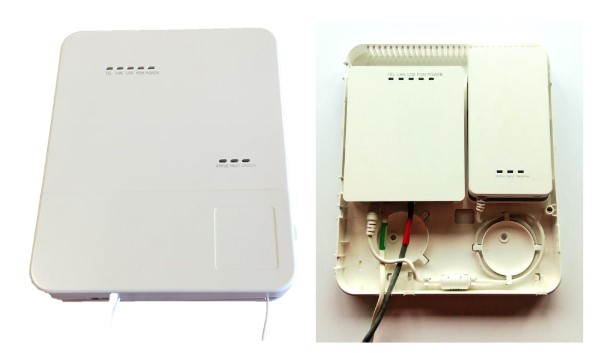
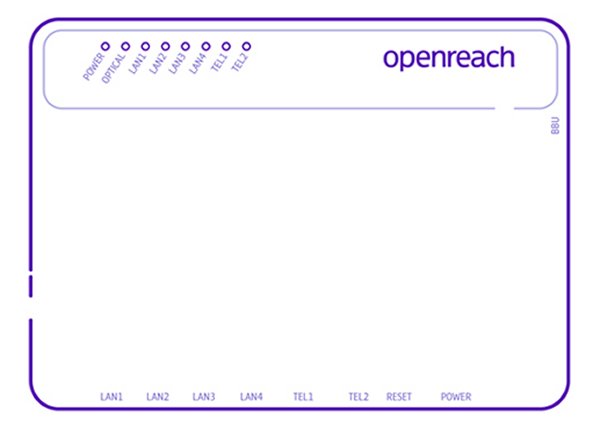
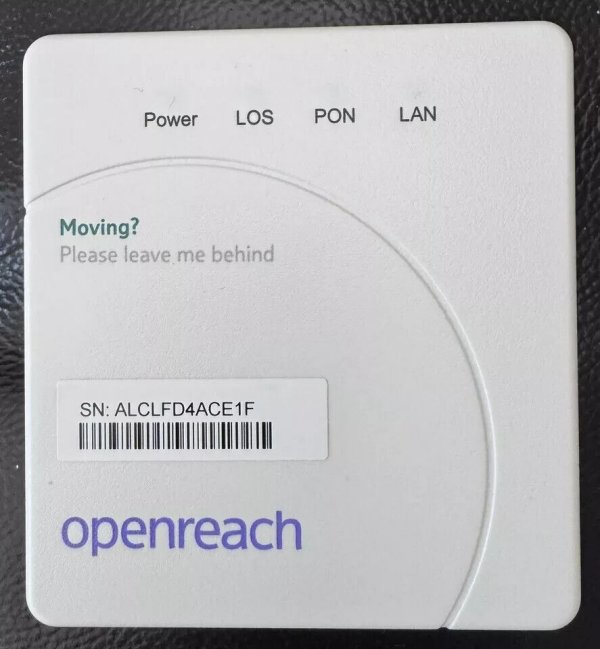
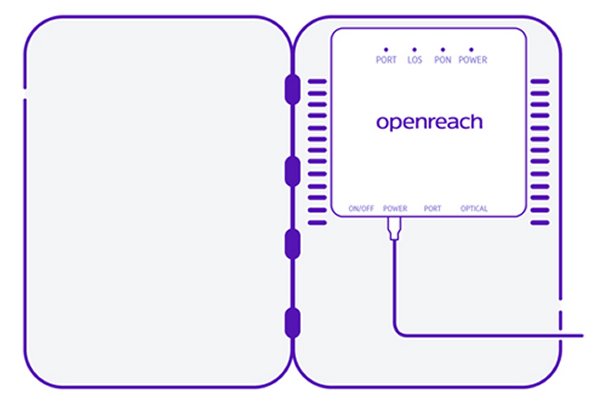
Modem or Optical Network Termination Device (ONT) There are now (as of 9/6/2025) ONT types used by Openreach. All these ONT's have lights on the front, click here for the meaning of these lights. Huawei 1-port The Huawei 1-port model is also powered by a white coloured power supply which is connected to the battery unit (BBU). The Smart Hub is connected to the ONT socket marked PORT 1 with the red plug needed cable. The other end of this cable is connected to the WAN port (Port 4) on the Smart Hub. To access this gain access firstly open the door at the bottom of the unit. This door is hinged on the left and opens by pulling the tab on the right hand side. The top cover is fixed by a single Philips screw which will now be visible. It is to the right and just under the top door - you can see the screw hole in the picture. With the screw removed the cover will require a good pull to open. The ONT box houses two units. Left is the fibre termination unit and to the right is a battery pack. The fibre terminating unit has 5 LED's and the battery pack has 3 LED's. Normally no action is required with this box but sometimes a red fault light shows even though the phone and internet are working. This normally happens after a power failure. Inside the battery pack are a couple of batteries. These batteries will be at a low voltage after a power outage and will start recharging. As they charge the red light will extinguish and the charging light will go yellow and then go out when they are fully charged. If the red fault light persists after 24 hours and then the batteries will require replacing. This is the customers responsibility according to BT. The green optical cable would have been connected by your engineer. Do not unplug it. If the PON light is off and the LOS light is red or flashing, check that the cable's inserted fully into the modem. Contact BT if you're still having issues and:-
The Battery Unit (BBU) has three LEDs which will indicate the status of the battery pack. These are at the bottom right of the BBU. LED status explanation:-
Huawei 1+1 ONT Battery Replacement Before working on the battery unit ensure that the power is switched off or the power supply cable disconnected (pull down). Also disconnect the cable on the extreme left of the terminating unit (pull down). The top cover is fixed by a single Philips screw which will now be visible. It is to the right and just under the top door - you can see the screw hole in the picture. With the screw removed the cover will require a good pull to open. With the both covers open, the battery unit can be seen to the right. Slide the battery unit upwards and lift off the locators. On the rear of the battery box is a slide cover, which once removed exposes the four AA batteries. Unsure they are replaced with the same rechargeable type. Do not, under any circumstances, use ordinary AA batteries. Some older units will have an external battery box (before April 2019). An alternative to replacing batteries is to remove the Battery pack in its entirety and plug the power cable directly into the left hand termination unit. BT advise that the battery backup unit uses four 2000 mAH-NiMH BYD rechargeable AA batteries at 1.2V.
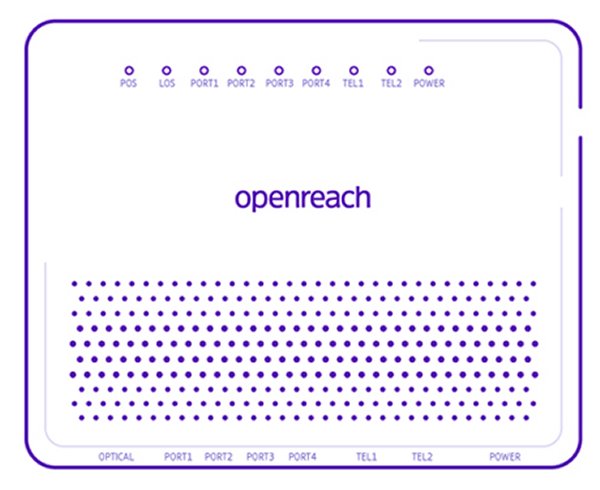
Huawei 4-port This modem has four ports and the Smart Hub is connected to PORT 1. The green optical cable would have been connected by your engineer. Do not unplug it. If the PON light is off and the LOS light is red or flashing, check that the cable's inserted fully into the modem. Contact BT if you're still having issues and:-
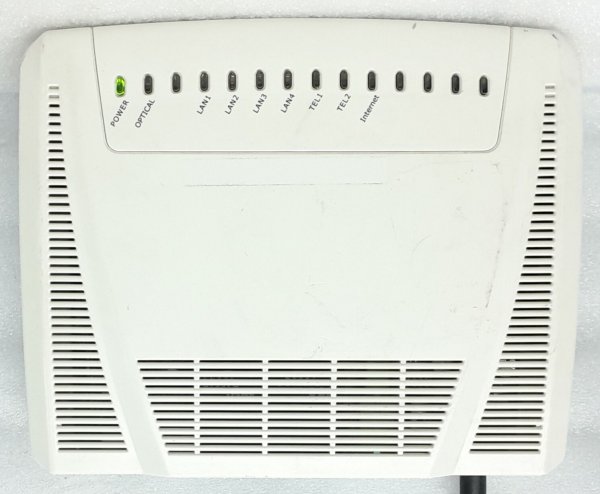
ECI Modem
ECI C-Series Modem
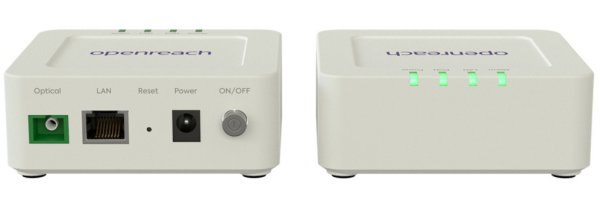
Nokia Modem The 1G model has a yellow Ethernet port, whilst the 2.5G model is coloured Orange. These ports connect to the Smart Hub. Dimensions
Adtran SDX 611B/D
(1G) and SDX 611Q (2.5G) ONT's Dimensions
Adtran SDX 611Q
LED Status Lights The following table will assist in fault finding on a BT ONT.
|
|||||||||||||||||||||||||||||||||||||||||||||||||||||||||||||||||||||||||||||||||||||||||||||||||||||||||||
Last revised: June 10, 2025FM | |||||||||||||||||||||||||||||||||||||||||||||||||||||||||||||||||||||||||||||||||||||||||||||||||||||||||||